Deploying a Local Data Pipeline to AWS: What Actually Broke
A developer moves a working local data pipeline to AWS EC2 and discovers every hidden assumption baked into single-machine setups.
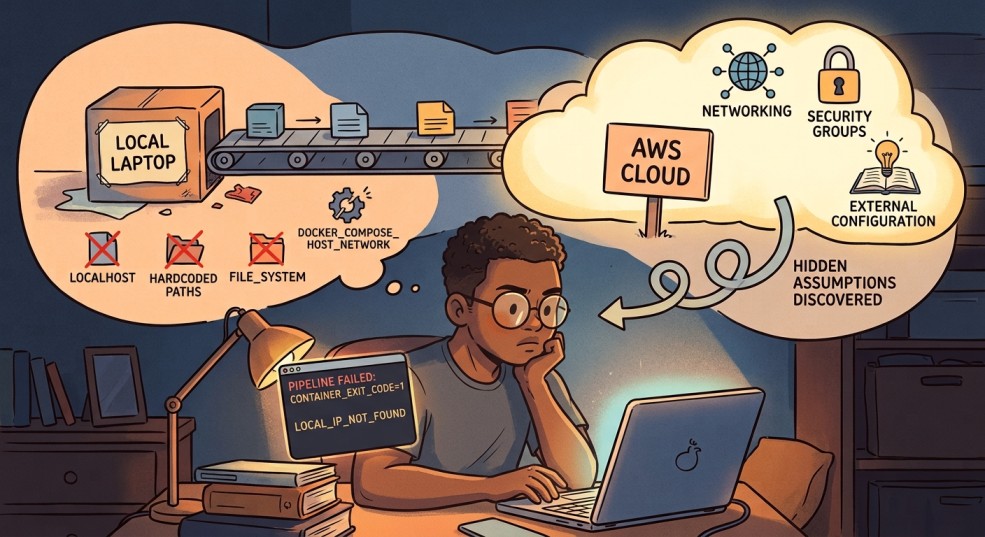
For the past few months, I’ve been building a small data pipeline entirely on my Windows machine. RSS ingestion running in WSL2, Postgres in Docker, Kestra orchestrating the whole thing, dbt transforming the data on top. Every piece worked. I had a working lineage graph, passing tests, a scheduled flow that fetched articles and saved them to a database.
It all worked because it was all sitting in one place. My laptop.
This article is about what happened when I tried to move it off my laptop and onto a real server, using nothing but the CLI. I expected the hard part to be AWS itself: accounts, instances, networking. It wasn’t. The hard part was everything I didn’t know I’d built on top of “it’s all running on the same machine.” That assumption was doing more work than I realized, and taking it away broke things one at a time, in ways that taught me more than the original build did.
Setting Up the Box
Getting a server running was, honestly, the easy part.
I created an AWS account on the newer $100-credit free tier, set up an IAM user for CLI work instead of using root (a small good habit that saved me from myself more than once), and launched a t3.small EC2 instance running Ubuntu 22.04.
A few small surprises came up along the way. Nothing major, but enough to remind me that a cloud server isn’t just my computer in a different location.
The default 8GB disk was too small before I’d even started. Resizing it meant running growpart and resize2fs, and the instructions I found online kept referencing a device called xvda. My instance didn’t have one. Newer instance types use the Nitro system, which names drives things like nvme0n1 instead. Small naming difference, but it’s the kind of thing that makes you doubt everything else you’re about to type — if the first command doesn’t even find its target, what else is going to quietly not apply.
I also saw the instance go “impaired” at one point while Kestra was pulling its Docker image for the first time. My best guess was that it had run out of memory. I added a 1GB swap file as a bit of extra breathing room, and it hasn’t happened since. Basically, it gives the system somewhere to offload memory when the RAM gets full, using disk space as a slower backup. It was a simple fix, but it was also my first reminder that a rented server doesn’t have quite the same headroom I’d gotten used to on my laptop.
I attached an Elastic IP so the server’s address wouldn’t change every time I stopped and started it, and locked down the security group so only my own IP could reach ports 22 (SSH), 8080 (Kestra’s UI), and 5432 (Postgres). That last part turned into its own minor recurring chore: my home internet doesn’t give me a fixed IP address, so most sessions started with me re-authorizing whatever address I currently had before anything else would even load.
None of this was hard. It was just a lot of small, specific facts about this particular kind of computer that nothing in my local setup had ever forced me to learn.
Getting the Pipeline Over
I installed Docker, brought over my project with rsync instead of git — since my repo is public and my .env file has real secrets in it — and ran docker compose up -d. Postgres came up healthy. Kestra came up too.
One thing caught me off guard here: Kestra’s flows don’t live in files that sync automatically when you copy a project over. They live inside Kestra’s own internal database. My one flow, fetch_rss, simply didn’t exist on the server until I pasted its YAML into the UI myself. It’s a small thing, but it’s the first hint of a pattern that showed up again and again during this whole process: things that felt like “my project” were actually split across two different kinds of state — files I own and copy around, and internal state that lives only inside the running system.
I clicked Execute. It failed immediately.
The Toolbox That Wasn’t There
My flow used a Process task runner for the actual work. It built the Python virtual environment, installed the dependencies, and ran my ETL script. That was exactly how I had it set up locally, and it had never caused me any problems.
The error was about a missing package: python3.12-venv. Digging in, I learned something I genuinely hadn’t considered. The Process task runner doesn’t run on the EC2 host. It runs inside Kestra’s own container. Kestra’s container had Python, but not the piece needed to build a virtual environment.
I fixed it temporarily by running apt-get install -y python3.12-venv directly inside the container. It worked, but I knew it wouldn’t survive a restart because the change wasn’t part of the image itself. I’d fixed the immediate problem, but not the underlying setup.
This is where I had to make a real decision, and it’s the first genuinely useful lesson from this whole project: the manager and the worker shouldn’t be the same thing. Kestra’s job is to decide when things run and keep track of them. It is not supposed to also be the thing building Python environments and installing packages by hand. Every time a task needed something new, I’d be rebuilding Kestra’s own image to fit, which is a strange amount of responsibility to hand to your orchestrator.
Instead of trying to keep patching Kestra itself, I moved the actual work out of it and switched the task to Kestra’s Docker task runner. The idea was pretty simple: Kestra would spin up a separate container just for the Python job, run the ETL script there, and get rid of the container when the job was done. It was closer to how I wanted the setup to work, although I was about to run into a few more complications.
Giving the Manager a Key It Didn’t Know It Needed
For Kestra to launch a separate worker container, it needs to be able to talk to Docker itself — the actual daemon managing containers on the host. The way you grant that is by mounting the Docker socket into Kestra’s own container.
This is worth sitting with for a second, because it’s not a neutral decision. Anything with access to that socket can effectively ask Docker to do anything on the host, including spinning up containers with far more access than they should have. Locally, on my own laptop, this never registered as a real tradeoff. On a machine sitting on the open internet, it’s a genuine one. I decided it was acceptable for a learning project running a single low-stakes flow, but it’s exactly the kind of decision that deserves to be made on purpose, not discovered by accident three steps into a debugging session.
With the socket mounted, I updated the flow to use the Docker task runner and pointed it at a python:3.12-slim image. First real test: Permission denied.
Turned out the socket being mounted wasn’t enough. Kestra’s own process inside the container wasn’t running as root, and that particular door only opens for root. Having the key isn’t the same as being allowed to use it.
Adding user: "0:0" to Kestra’s service definition fixed it, though not before I spent a confusing round-trip discovering that Docker Compose doesn’t always rebuild a container just because you changed a line in the file. docker compose up -d --force-recreate kestra was the command that actually made the change take effect. up -d alone quietly decided nothing important had changed.
The Volume That Wasn’t Really There
With permissions sorted, the flow ran further, and hit a new wall: Could not open requirements file: No such file or directory.
I’d mounted my project folder into the worker container so it could see the script and its dependencies. I could prove the mount worked by running the exact same docker run command by hand, outside of Kestra, and it worked perfectly. Whatever Kestra was doing, it wasn’t the same thing.
This ended up being the longest detour in the whole project, and honestly, probably the one that annoyed me the most in hindsight. The worst part was how quietly it failed. I first tried a setting called volume-enabled, but I had it in the wrong part of the config. Then I tried again with the correct property name, volumeEnabled — no dash — and put it in the right place, under plugins.configurations, targeting the Docker task runner plugin by its full class name. Still nothing.
No error. No warning. Nothing. It just kept silently ignoring the setting.
Eventually, I found the real explanation: host-folder mounting for the Docker task runner appears to require Kestra’s Enterprise edition. I’d been chasing a setting that simply doesn’t work on the free tier I’m using. It wasn’t a typo or a misconfiguration. I was basically trying to open a door that I didn’t even know was locked. The frustrating part was that Kestra never made that clear — it just quietly ignored the setting and left me wondering what I was doing wrong.
When a setting appears to do nothing no matter how correctly you write it, stop assuming you have the syntax wrong. Check whether the feature exists in the edition you’re actually running.
The Way That’s Actually Meant to Work
The fix wasn’t to force the mount to work. It was to stop trying to mount anything at all.
Kestra has a feature called Namespace Files — essentially a small file store that lives inside Kestra itself. You upload your project’s files into it once, and Kestra hands them to worker containers automatically at runtime, no host folder access required. It’s the fully-supported version of what I was trying to hack together with volumes.
Uploading them from the server turned into its own small chain of mistakes, which by this point in the day felt almost expected. I tried a PUT request first; Kestra wanted a POST with the file wrapped as multipart form data. I got that right and got back silence — no confirmation, no error — which I initially read as success. It wasn’t.
A curl -i flag to actually show me the response headers revealed the real problem: 401 Unauthorized. Basic auth had been on the whole time; my browser just never told me because it was already logged in. curl has no memory like that. Adding -u username:password to every request fixed it.
Once the files were uploading, I made a habit of checking each one immediately after, since one early batch attempt had somehow paired the wrong file sizes with the wrong filenames. Slower, but it meant every mismatch got caught the moment it happened instead of surfacing three steps later as a mysterious script error.
With all six files confirmed correct, I rewrote the flow to use namespaceFiles: enabled: true instead of a volume mount, and switched the file paths from absolute (/workspace/python/...) to relative (python/...), since Namespace Files land directly in the container’s working directory rather than wherever I’d been mounting things.
This time, it actually ran the script. Fetched 25 articles. Parsed them. And then hit the last assumption standing.
The Last Assumption: localhost Isn’t a Place
This was the smallest fix of the whole day, and also the most honest one. When the ETL script tried to connect to Postgres, it was still using localhost as the host — which on my laptop pointed directly at the Postgres container. On the server, localhost inside a worker container points to that container itself, not to the Postgres container running alongside it. The two containers are not on the same machine in any meaningful networking sense; they’re isolated environments that need to address each other by service name.
Changing the database host from localhost to the Postgres service name defined in docker-compose.yml resolved it immediately. Twenty-five articles landed in the database. The flow completed successfully.
The fix took seconds. The lesson it represents took the entire day to earn: every assumption that “things are nearby” needs to be made explicit when you move to a distributed environment. localhost, shared filesystems, pre-installed tools — none of these travel with your code. The work of deployment is largely the work of finding everything you forgot to pack.