WebMCP: The Browser-Native Protocol That Fixes AI Agent Automation
WebMCP is a proposed open web standard that lets websites expose structured, callable tools directly to browser-based AI agents, eliminating unreliable click-ba
Introduction
You have probably watched a browser AI agent work at some point this year. It clicks a dropdown, waits for the DOM to update, reads a screenshot, decides what to click next, and waits again. One task. Five seconds. A hundred things that could go wrong. If the CSS class changes, if the dropdown animates differently, if the page lazy-loads something, the whole thing breaks.
That is not a model problem. The models are fine. It is a protocol problem. There was no standard way for a website to tell an agent what it could actually do on the page, so agents were left guessing pixel by pixel, click by click.
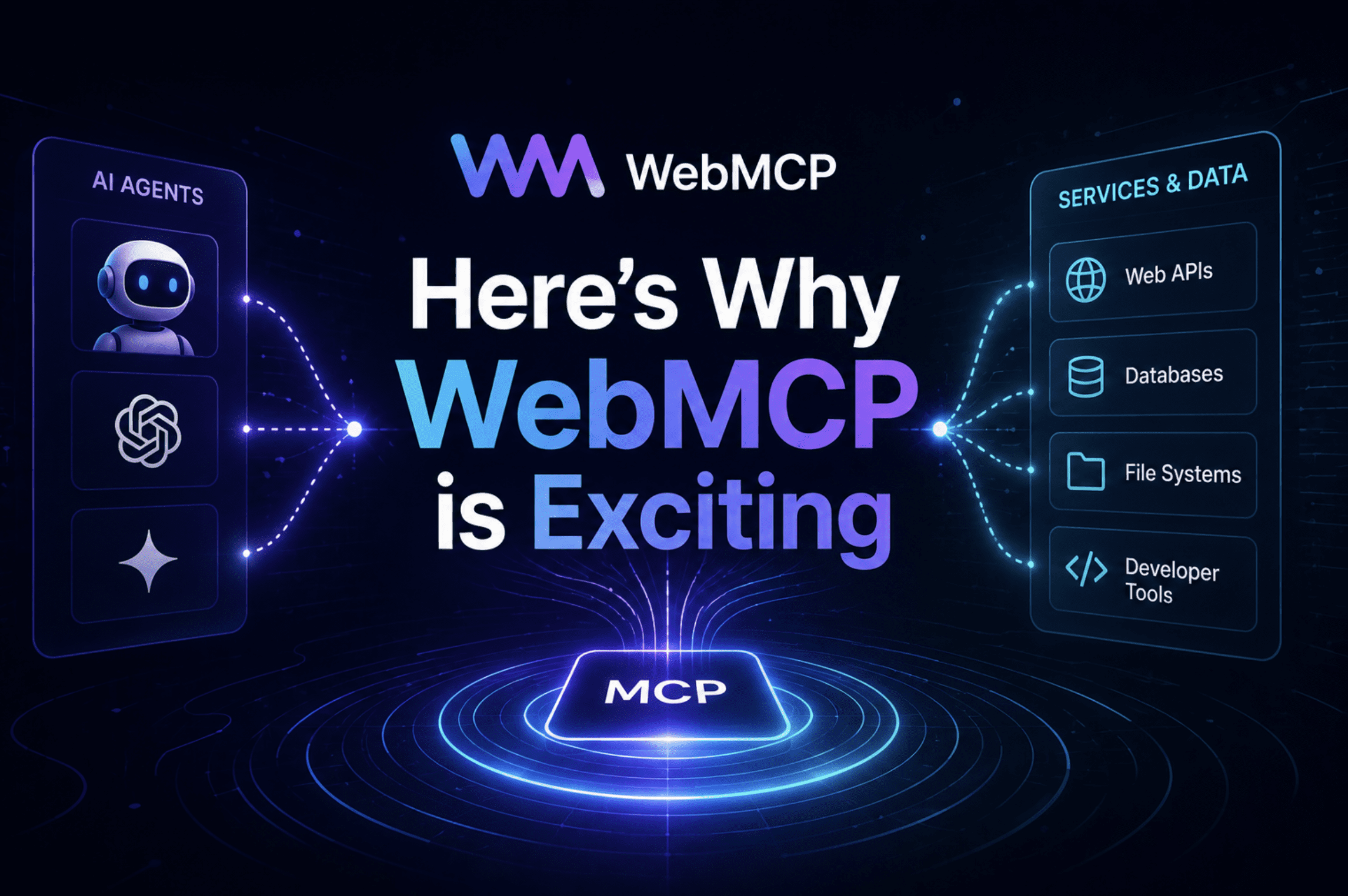
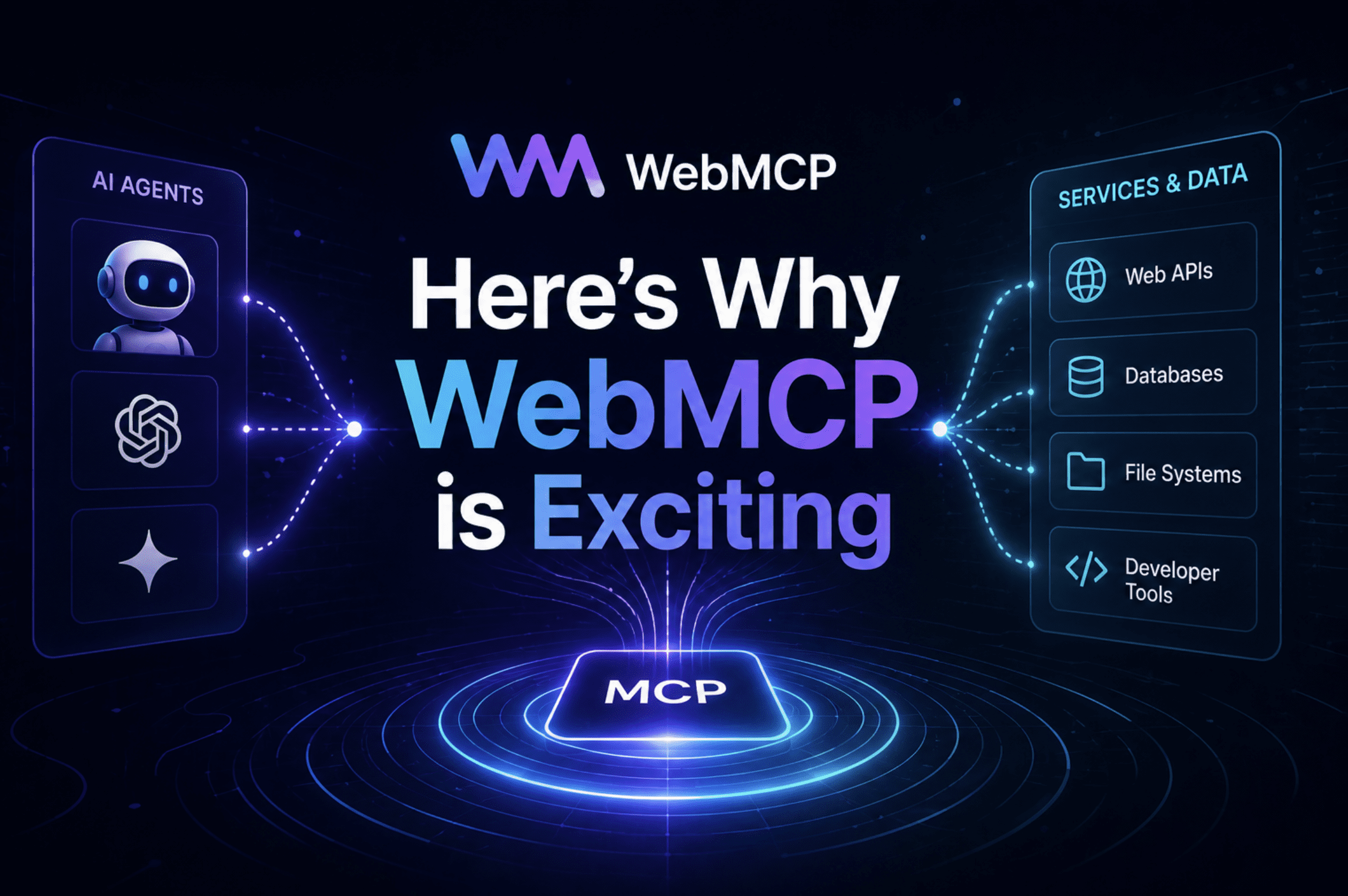
WebMCP is the fix. It is a proposed open web standard that lets websites expose structured, callable tools directly to browser-based agents. Instead of an agent trying to interpret your UI, your site tells the agent exactly what functions exist, what inputs they take, and what they return. The agent stops guessing.
Google announced the WebMCP origin trial at Google I/O 2026 on May 21, and Chrome 149 shipped with it enabled for real traffic — not just developers behind a flag. If you build anything on the public web, this is worth understanding today.
What WebMCP Actually Is
WebMCP is a browser-native agent protocol co-developed by Google and Microsoft. The W3C Web Machine Learning Community Group published the specification as a draft in February 2026, with three editors: Brandon Walderman from Microsoft, and Khushal Sagar and Dominic Farolino from Google.
The core idea is simple: a website registers “tools” — named, typed JavaScript functions or annotated HTML forms — through a document.modelContext interface. A browser agent can then discover those tools, understand what they do from their descriptions and JSON Schemas, and call them directly instead of simulating mouse clicks.
Think of it as the difference between handing someone a remote control and watching them poke at your television screen, trying to change the channel.
To understand where WebMCP fits, it helps to know where it does not fit. Anthropic’s Model Context Protocol (MCP) is a server-to-server protocol — the model connects to your backend over stdio or HTTP. Agent-to-Agent (A2A) handles communication between different AI agents. WebMCP handles the layer those two miss: the client page, with the logged-in user sitting right there.

A three-layer stack diagram showing “Server Layer,” “Agent Layer,” and “Browser/Page Layer”
WebMCP provides three things to bridge this gap:
- Discovery: a standard way for pages to register tools with agents, such as
checkoutorfilter_results, so an agent visiting your page knows what is available - JSON Schema: explicit definitions of what inputs each tool expects and what it returns, which reduces the hallucination that happens when agents are left to interpret ambiguous UI elements
- State: tools can be registered and unregistered dynamically as the page state changes, so the agent always knows what actions are available at a given moment
Why the Old Way Was Broken
Before WebMCP, browser agents had two options: vision-based actuation or DOM scraping. Vision-based actuation meant the agent took a screenshot, sent it to a multimodal model, got back coordinates to click, clicked, waited for the DOM to update, took another screenshot, and repeated. It worked well enough to demo. It did not work well enough to ship reliably. Every pixel change, every animation, every lazy-loaded element was a potential failure point.
DOM scraping was faster but semantically blind. The agent could read what elements existed on the page, but it had to guess their purpose from attribute names, class names, and surrounding text. A button labeled “Go” could mean search, submit, confirm, or navigate — and the agent had to figure that out from context every single time.
The numbers reflect how significant the gap is. Research on structured versus unstructured browser automation shows that structured approaches reduce task errors by 67% and improve completion rates by 45% compared to scraping methods, according to analysis from WebMCP implementation guides published in 2026.
WebMCP’s answer to all of this is to move the interpretation burden from the agent to the website. You know what your checkout button does. You know what fields your support form expects. WebMCP gives you a way to say that explicitly, in a format the agent can read without any guesswork.
The Two APIs: Declarative and Imperative
WebMCP introduces two APIs, both accessible through the document.modelContext interface. They are designed for different situations, and you can use both on the same page.
The Declarative API
The Declarative API is for HTML forms. You annotate your existing form elements with two new attributes — toolname and tooldescription — and the browser automatically translates the form into a structured tool the agent can call. You do not need to write any JavaScript for the basic case.
Here is what a support request form looks like with the Declarative API:
<!-- A standard HTML form, upgraded with two WebMCP attributes -->
<form
  toolname="createSupportRequest"
  tooldescription="Submits a request for customer support and routes it to the correct team."
  action="/submit"
>
  <label for="firstName">First Name</label>
  <input id="firstName" name="firstName" type="text" />

  <label for="lastName">Last Name</label>
  <input id="lastName" name="lastName" type="text" />

  <!-- toolparamdescription gives the agent more context about what this field does -->
  <input
    id="issue"
    name="issue"
    type="text"
    toolparamdescription="A short description of the support issue."
  />

  <button type="submit">Submit</button>
</form>
What this does: The browser reads the toolname and tooldescription attributes and registers the form as a callable tool. When an agent wants to submit a support request, it calls createSupportRequest with the appropriate inputs — no pixel-clicking required. The form remains visible to the user throughout, so they can see exactly what the agent is doing.
If you remove either attribute, the tool is automatically unregistered. You can also add toolautosubmit to the form element to let the agent submit it directly once it has populated the fields, instead of requiring the user to click the submit button manually.
The Declarative API is the right choice when you have a stable, form-based interface and want the simplest path to agent-readiness. Add two attributes. Done.
The Imperative API
The Imperative API is for everything the Declarative API cannot handle — dynamic tools, JavaScript-driven interactions, tools that call APIs directly, tools that depend on application state. You define these tools in JavaScript using document.modelContext.registerTool().
Here is a practical example: an order status lookup tool that lets an agent check a customer’s orders without scraping the order history page.
// Register a tool that lets an agent query order status for a logged-in user.
// The agent inherits the user's authenticated session -- no OAuth flow needed.

document.modelContext.registerTool({
  name: "get_order_status",

  // Description is critical -- write it for the agent, not for a human reading the code.
  // A vague description like "get orders" teaches the agent nothing useful.
  description:
    "Returns the order number, current shipping status, and estimated delivery location for orders in a selected time period. Call this when the user asks about their orders or a delivery.",

  // inputSchema follows the JSON Schema spec and defines what inputs this tool accepts.
  inputSchema: {
    type: "object",
    properties: {
      timeframe: {
        type: "string",
        description: "The time period to search orders within.",
        enum: [
          "today",
          "yesterday",
          "last_7_days",
          "last_30_days",
          "last_6_months",
        ],
      },
    },
    required: ["timeframe"],
  },

  // execute is the function the browser calls when an agent invokes this tool.
  // It receives the validated input and should return a string the agent can read.
  execute: async ({ timeframe }) => {
    // Fetch from your existing backend -- the user's session cookies are already present.
    const response = await fetch(`/api/orders?timeframe=${timeframe}`);
    const orders = await response.json();

    if (!orders.length) {
      return `No orders found for ${timeframe}.`;
    }

    // Return a structured summary the agent can interpret and relay to the user.
    return orders
      .map(
        (o) =>
          `Order #${o.id}: ${o.status}, estimated delivery to ${o.location}`
      )
      .join("\n");
  },
});
What this does: The tool is registered with a name, a plain-language description, a typed input schema, and an async execute function. When a browser agent asks for available tools on the page, it sees get_order_status alongside its schema. It knows exactly what to pass in and what to expect back.
If you need to unregister a tool later — for example, when a user logs out or navigates away from a section where the tool makes sense — you use an AbortController:
// Unregistering a tool when it should no longer be available.
// This matters for SPAs where page sections change without a full navigation.

const controller = new AbortController();

document.modelContext.registerTool(toolDefinition, { signal: controller.signal });

// Later, when the user logs out or the tool is no longer relevant:
controller.abort(); // Tool is unregistered immediately
What this does: Passing an AbortSignal to registerTool gives you a clean way to remove tools without tracking references manually. When you call controller.abort(), the tool disappears from the agent’s discovery list right away. This is important for single-page applications where the available actions change as the user moves through the product.
You can also discover all registered tools on the current page with document.modelContext.getTools(), and call any of them manually with document.modelContext.executeTool(). These methods make it straightforward to inspect and test your tool registrations directly in the browser during development, giving developers full visibility into what any agent visiting the page would see.